3-month subscription
30 EUR single simultaneous device
For testing the setup on the TV and for short-term use.
- Single-device use
- Live TV, movie and series scope
- Setup support
Samsung TV IPTV is based on installing an IPTV player from the television app store and watching live TV, movie and series content on a Samsung Smart TV model. This page covers the store check, player installation and the activation step, the external playback device alternative and the simultaneous device scope.
Using IPTV on a Samsung TV requires an internet connection, a player that can be installed from the store and the login details shared with the subscription. If the player is listed in the store the setup is shorter; where it is not listed, an external playback device connected via HDMI comes into play. All compatibility criteria are compared on the device compatibility page.
The first step of the setup is to search for a player in the store, the second is to install and activate the player. Some players show a device code on screen and activation is completed by entering the code in a browser. Because differences in model year and software version can change the store list, sharing the model details before setup reduces the incompatibilities that may arise later.
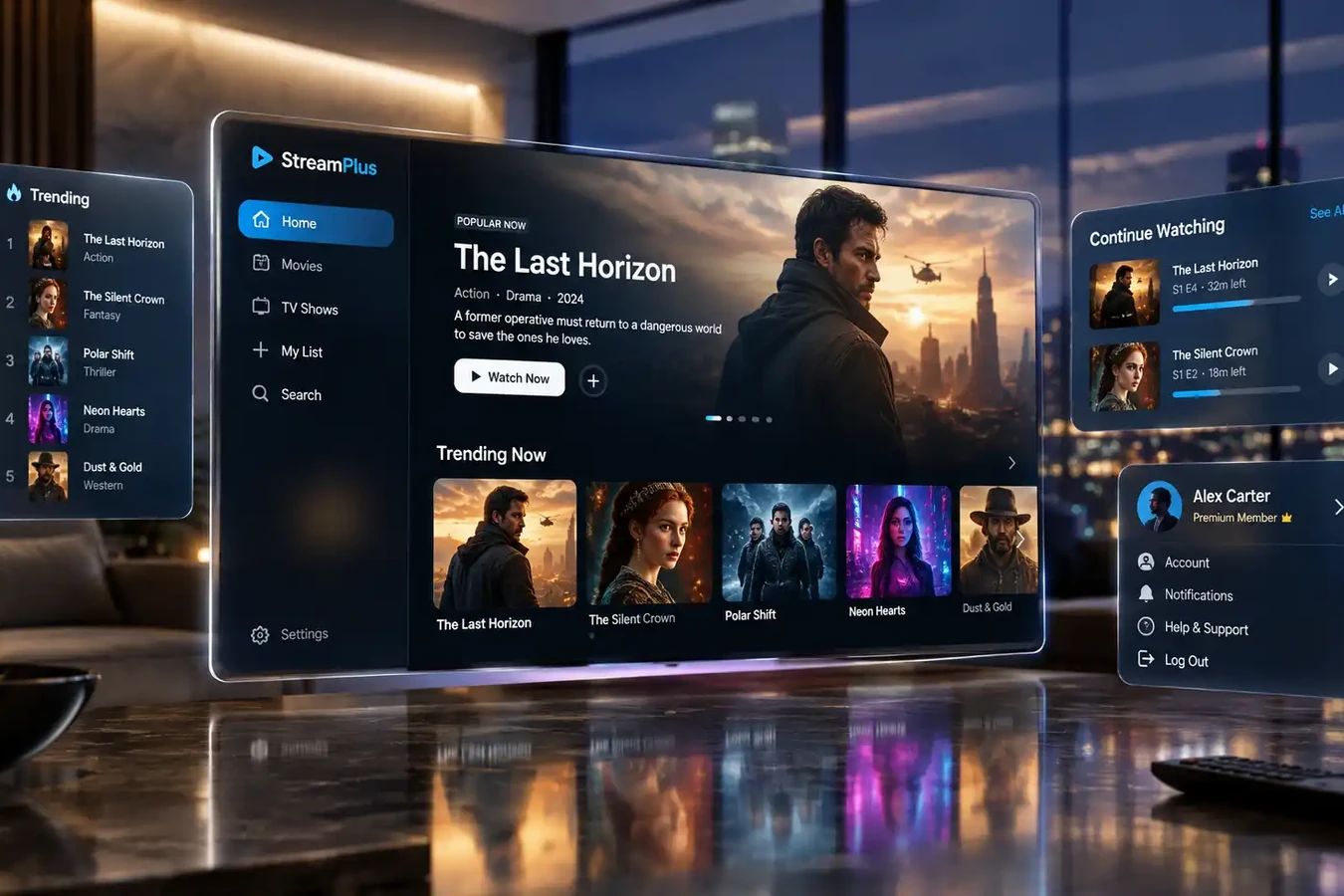 Samsung setup support
Setup on a Samsung TV is completed in four steps: searching for a player in the store, installing and activating the player, defining the subscription login details and testing the stream. The details of the steps may vary according to the model year and the player chosen.
Search for an IPTV player in the app store of the television. If the search returns no result, an external playback device should be planned for your model year; in this option the setup proceeds over an HDMI connection.
Install the suitable player from the store. If the player shows a device code on screen, complete the activation by entering the code in a browser; this step proceeds with the instructions on the own screen of the player.
The M3U playlist or Xtream Codes details shared with the subscription are added to the player. Choosing the login method according to the format the player supports makes later playlist updates easier.
After the channel list and the programme guide are loaded, open a short test stream; check channel switching, picture quality and the stability of the wireless connection.
Store content on Samsung TVs changes with the model year and the software version, so the same player is not listed on every model. For setup details see the IPTV setup guide and EPG setup pages; if no player is listed in the store, check the Fire TV / Firestick page for the external device setup.
The items below summarise the points recommended to check before and after setup on a Samsung TV; each row aims to surface early the incompatibilities that may arise during setup.
| Check item | Why it matters | How to check |
|---|---|---|
| BasicStore support and model year | If no player can be found in the store, the setup cannot be completed through the television. | Search for an IPTV player in the store; if there is no result, consider the external playback device options. |
| CompatibilityTV software update | On software that is not up to date, store behaviour and player compatibility may change. | Check the software update from the support and update section in the settings menu. |
| SetupPlayer activation step | If the setup code is not completed, the player will not open the stream. | Enter the code shown on screen in a browser according to the instructions of the player; the step differs from player to player. |
| ConnectionWired or wireless connection | Fluctuations in the wireless network can cause the stream to freeze. | Use an ethernet cable where possible; on wireless, check the signal strength: Wi-Fi problems. |
| ScopeSimultaneous device scope | Watching on a second screen at the same time requires a separate subscription per screen. | Determine the number of screens to be used and compare the headings on the single-device IPTV and multi-connection IPTV pages. |
| UsageProgramme guide and playlist refresh | A playlist that is not up to date makes channel search and schedule planning harder. | Refresh the channel list and the guide from the player settings; the details are on the EPG setup page. |
| SupportExternal device alternative | If the store is not supported on the model, the setup is done through a different device. | For external playback device options connected via HDMI, see the device compatibility page. |
The headings in the table summarise the checks that can be made on the Samsung TV side. For the subscription terms (period options, the 3-hour trial and the 3-day refund) see the IPTV prices and refund and subscription terms pages.
The subscription needed to use IPTV on a Samsung TV is offered in three period options and each subscription is defined for 1 simultaneous device. If simultaneous viewing on a second screen alongside the TV is planned, a separate subscription is taken per screen.
3-month subscription
30 EUR single simultaneous device
For testing the setup on the TV and for short-term use.
6-month subscription
50 EUR single simultaneous device
For those planning medium-term use after setup.
12-month subscription
80 EUR single simultaneous device
The lowest monthly cost for long-term use on a Samsung TV.
Subscriptions are defined for a single simultaneous connection. Users who want to watch on a second device at the same time need a separate subscription per device.
For 2 devices the total is 60 EUR for 3 months, 100 EUR for 6 months and 160 EUR for 12 months; for 3 devices it is calculated as 90 / 150 / 240 EUR.
The trial period is 3 hours and the refund period for subscriptions is 3 days. The details of the terms are on the refund and subscription terms page.
The amounts in the table increase with the number of devices: the total amount is calculated as many times as the number of subscriptions (number of devices × the price of a single subscription). For the period options see the IPTV prices page, for a side-by-side comparison the package comparison page and for the trial terms the IPTV trial pages.
The suitable player is installed from the Samsung TV app store, the login details shared with the subscription are defined and the channel list is loaded. The order of the steps may vary by model year; on models where no player is available in the store, setup is done through an external playback device connected via HDMI.
Store content varies by model year and software version; if a different search term does not help, the solution is an external playback device. A Fire TV Stick or Android TV Box is connected to the TV via HDMI and setup is completed through its own store. Share your model details and we can clarify together which option suits you.
Some players show a device code or a setup address on screen at first launch. The code is entered in a browser or in the phone app according to the own instructions of the player and the activation is completed. Because this step is player-specific, doing it together with the support team saves time.
The trial lasts 3 hours; during this time you can test channel switching, picture quality and connection stability on your TV. Subscriptions come with a 3-day refund window; full terms are set out on the refund and subscription terms page.
Each subscription is defined for 1 simultaneous device; watching on two screens at the same time requires a separate subscription per device. The total for 2 devices is 60 EUR for 3 months, 100 EUR for 6 months and 160 EUR for 12 months.
When the guide looks empty, the programme guide section in the player settings is checked and the guide source shared with the subscription is defined again. Refreshing the channel list also fixes the match; the details of the steps are on the EPG setup page.
No new television is needed; on models without store support an external playback device can be connected and the same subscription used. In this setup the television works only as a screen and all settings are made on the external device.
If your answer is not here, you can check the comparison on the device compatibility page and the scope headings on the single-device IPTV and multi-connection IPTV pages.
The setup path and the player approach of all device families, including Samsung, are compared in a single table.
The general setup flow covering player installation, login details and the first test steps.
Setup of an external playback device connected via HDMI for televisions without store support.
Defining the programme guide source, matching it with the channel list and refreshing it.
Checks to make when the stream freezes or drops on a wireless connection.
Screen mirroring from a phone to the television and using IPTV on a mobile device.
If you have a streaming problem on your Samsung TV, see the IPTV freezing and IPTV not opening pages for the steps. For player options and details of defining a playlist, the IPTV apps and M3U setup pages guide you.